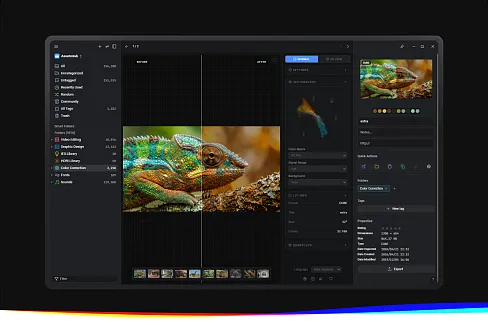
本地AI自动整理素材
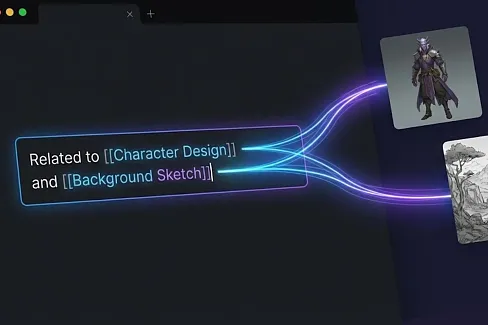
Deploy local AI via Olloma to automatically add annotations and tags to footage. Automatically detect and organize new footage. Perform duplicate footage checks.
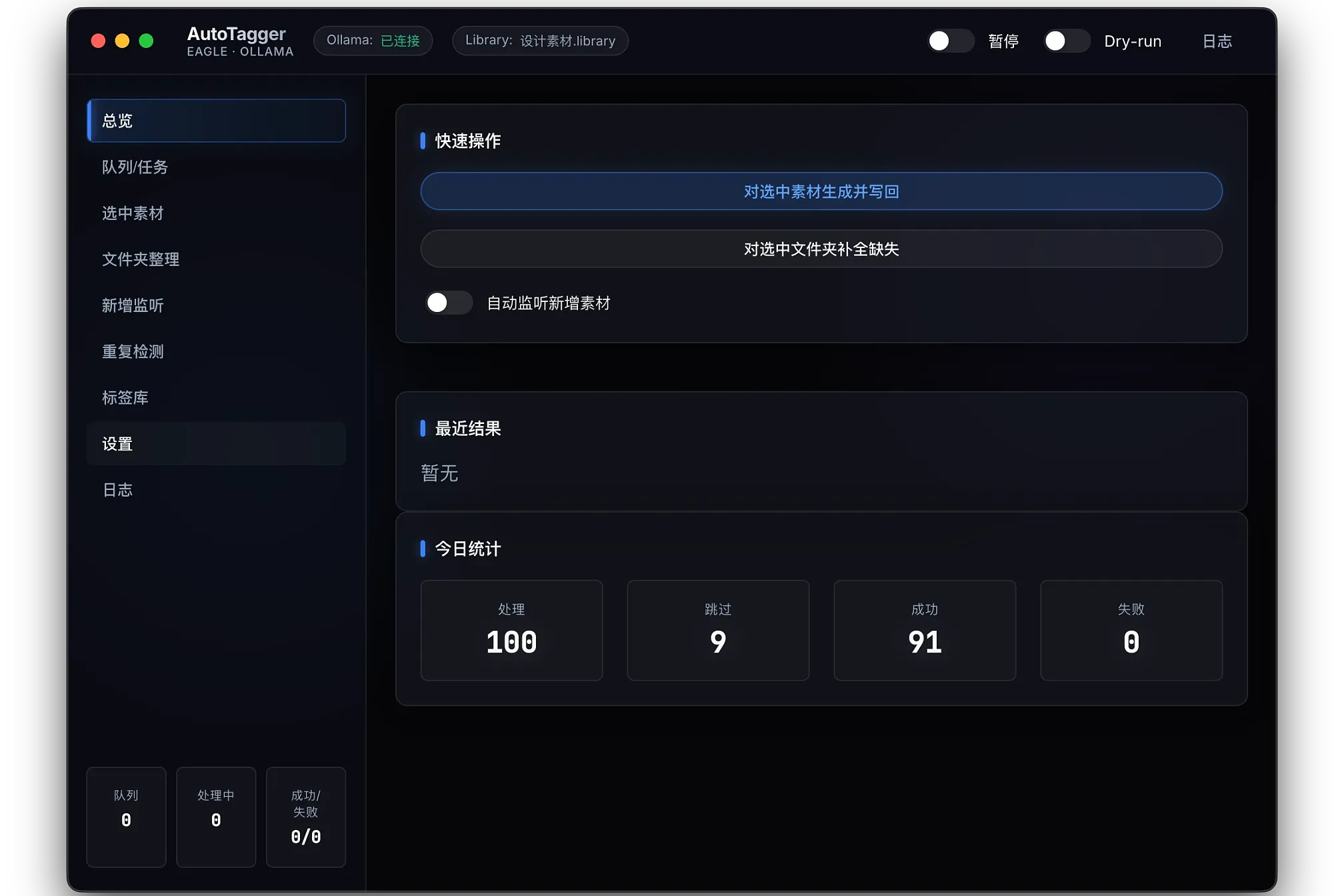
Local AI-powered automatic media organization
Installation and Usage Instructions (including: connecting to Ollama + usage of various functions)
Advantages:
Local Ollama inference: Media remains offline, offering better privacy and stronger control;
Default no overwrite: Only completes missing annotations/tags, without disrupting your manual organization;
Multiple entry points: One-click selection of media, batch selection of folders, and automatic monitoring for newly added media;
Duplicate detection: Precise/similar duplicate detection, with manual confirmation before deletion, reducing the risk of accidental deletion;
Controllable tag library: Tag library applies, can be enabled/disabled/customized/synonym convergence, and prompt size is limited;
Undoable: Snapshots are taken before writing back, allowing rollback of the current batch processing;
Running on an M4 chip MacBook Pro, typically processes one image in about 10 seconds. Currently, the focus is mainly on organizing image assets.
The organization results are as follows:
1) Prerequisites
Eagle is installed and can be opened.
Ollama is installed and running (default port 127.0.0.1 (line 11434)).
Check: Run "ollama ps" in the terminal.
The visual model has been downloaded (example qwen3-vl:8b).
Download: Send "ollama pull qwen3-vl:8b" in the ollama dialog box to automatically download the model.
Check: Run ollama list in the terminal.
2) Key Step: How the plugin connects to Ollama (most important)
The plugin accesses the local Ollama via HTTP.
Open the plugin → Settings on the left
Fill in the information as shown in your screenshot:
Ollama Address: http://127.0.0.1:11434
Model: Must be exactly the same as the NAME in the ollama list (e.g., qwen3-vl:8b)
Click Save Settings in the bottom right corner
Check the status bar at the top of the window:
Ollama: Connected indicates a successful connection
If it fails: Check the logs for the specific reason (common issues include incorrect model name / Ollama not starting)
3) Top Switches and Status
Pause: Pauses queue execution (does not empty the queue; resumes execution after restarting)
Dry-run: Only generates results without writing back to Eagle (used for verifying models/tag libraries/rules)
Logs: View runtime logs and error reasons (model not found, request timeout, JSON truncation, etc.)
Bottom left statistics:
Queue: Number of items waiting to be processed
Processing: Number of items currently running
Success/Failure: Cumulative results for this session
4) Left-side Function Pages: Function + Usage
4.1 Overview
Function: View current running status, statistics, and recent results/error overview.
How to use: If you encounter "slow speed/many failures," first check here and the log entry.
4.2 Queue/Task
Function: View all tasks (selected materials/folders/listener triggers), progress, success/failure, and failure retry entry (if any).
How to use:
If a task is stuck or very slow: First check if it is running, then view the task's error details/raw output.
4.3 Selected Materials
Function: Generate comments and tags for your "currently selected materials" in Eagle with one click and write them back.
How to use:
Select one or more materials in Eagle.
Open the plugin. Select the materials.
Click "Generate and Write Back" (It is recommended to verify with Dry-run first).
4.4 Folder Organization
Function: Batch complete comments/tags for your "currently selected folders" in Eagle.
How to use:
Select a folder on the left side of Eagle.
Open the plugin. Folder Organization.
Select whether to recursively organize subfolders (if any) → Start Organization.
4.5 Add Listener
Function: Automatically queues and organizes materials when you add them to Eagle (effective while Eagle is running).
How to use: Simply turn on the switch; it is recommended to import a small batch first to verify stability before keeping it enabled long-term.
4.6 Duplicate Detection
Function: Finds images with "duplicate downloads/similar duplicates" to assist you in manual cleanup.
How to use:
Select range (usually "selected folder")
Start scan
The results will display the addition date and size of each thumbnail, and recommend keeping the larger one.
A delete icon appears on the hover thumbnail → Click → Confirm twice → Delete (follows Eagle's delete/trash can process according to the plugin's current implementation)
Skip: Prevents this item from being prompted again (does not delete the material)
4.7 Tag Library
Function: Manages the "set of tags allowed when generating the model" (effective according to the current library)
How to use:
Search/Enable/Disable tags
Add custom tags (optional category/style)
Match synonym convergence (variants→canonical)
Control the number of enabled tags (too many will slow down inference and increase the probability of JSON truncation)
4.8 Settings
Purpose: Global runtime parameters
Ollama Timeout (seconds): Maximum wait time for a single request; increase if the model is slow.
Concurrency: How many assets can run simultaneously?
1 (Recommended): Most stable
2: Faster but more prone to interruption/more memory usage
Extreme Speed Mode: Prioritizes throughput (usually automatically reduces image size, increases concurrency, and simplifies inference)
Scaling Longest Side: Maximum side length of the image input to the model (smaller is faster, but less detail)
Brand Mode: Whether/how strictly brand-related information is written
Complete to ≥8: Completes the number of tags without overwriting (only increases, never decreases)
Duplicate Detection: Default scan range, similarity threshold, etc.
4.9 Logs
Purpose: Troubleshooting and performance analysis
5) Common Problems
Model not found: The model name in the plugin does not match the ollama list → Fill in the NAME as is
The user aborted a request: High concurrency/request interrupted/manually canceled → Reduce concurrency to 1, or enable Extreme Speed Mode
done=false / JSON Incomplete: Too many tags enabled, prompt too long, or model unstable → Reduce the number of tags enabled, enable speed mode, or change the model.
1. Added two levels of generation detail: "Standard" and "Detailed."
2. Optimized the tag generation logic; tags are now output based on visual evidence within the image, and the system no longer automatically inserts supplementary style or scene-based tags.
3. The tag library now supports enabling or disabling tag generation on a per-category basis.
4. Added a category management feature, allowing users to delete unwanted categories.
5. Added support for directly adding custom categories.
6. Ensured compatibility with custom categories and tag configurations from previous versions.
7. Optimized the layout and status text on the tag library page.
Update Log (Recommended Version: v0.1.12)
Date: 2026-03-04
New Features
Added a new "Recent Results" thumbnail wall to the overview page (new style)
Only square thumbnails are displayed; filenames and text status are not shown.
Fixed maximum display of 20 thumbnails (5 columns x 4 rows)
Always prioritizes "latest results," with new task results continuously updating.
Success/skipped results are displayed in green in the upper right corner ✓
Failed results are displayed in red in the upper right corner ✓
Fixes
Fixed an issue where the "Success/Failure" count in the left sidebar did not update during "Folder Organization."
The statistical logic has been adjusted; completion status counts are now correctly accumulated.
Fixed an issue where the task thumbnail display in the "Queue/Task" section was unstable.
Fixed an issue where black blocks/absence were displayed in the "Overview Recent Results" thumbnail.
Added a task result metadata backfilling mechanism and retry fallback.
Avoided long-term blank pages due to temporary read failures.
Optimized Recent Results Display Logic
Unified the display logic for recent results, reducing text noise and improving readability.
Multiple copy scenarios of the plugin directory have been uniformly covered to prevent Eagle from mistakenly loading older versions of the interface.
Plugin Release
You may also like